Site Directory

Home Page
About / Contact
Site Search / Links

Photoshop Articles & Tutorials

Auto Contrast
Better Blue Sky
Crooked Pictures
Photoshop Tips
Haze Removal
History Brush
Hot-Key Action
Perspective Correction
Rubber Stamp Tool
Skin Tone Correction
Smart Blur
Texas 2-Step Sharpening Action
Unsharp Mask + Fade

Miscellaneous Articles

Action Photography
Aperture Diffraction
D1X Mystery Pixels
D2H Skin Tones
D30 & D60 Color Fix
LCD Viewfinder Ideas
Multiplier Effect
Nikon D1 Color Fix
Printing & Processing
QM Pro for Noise
Why Shoot Raw?

Digital SLR
Camera Reviews

Contax N Digital
Canon EOS D30
Canon EOS 1D
Fuji S1 Pro
Fuji S2 Pro
Kodak DCS 315
Kodak DCS 620
Kodak DCS 620x
Kodak DCS 760
Kodak DCS Pro14n
Kodak 645M ProBack Nikon D100
Nikon D1 / D1H / D1X
Nikon D2H
Nikon D2X
Olympus E1

Point & Shoot
Camera Reviews

Agfa ePhoto 1680
Nikon Coolpix 700
Nikon Coolpix 800
Nikon Coolpix 900
Nikon Coolpix 950
Nikon Coolpix 990
Nikon Coolpix 995
Nikon Coolpix 5700

Other Reviews

Flash Accessories
Kodak 8500 Printer
Olympus P-11 Printer
Sigma 50-500 Lens

Lonestardigital.com

Best viewed at 1024 x 768 or greater screen resolution, 16 bit color or better. All content & photographs copyrighted, all rights reserved.  

Nikon D1 Colors -
Magenta skin tones, cyan casts, sallow tones, and weak looking colors have troubled D1 users since day one.... Here's an easy, reliable fix.

This two stage process, using Adobe PhotoShop (full version), will brighten your day and make you feel glad that you have a D1. It's good for "people pictures", pets, wildlife, landscapes, product shots, sports, flowers, architecture & real estate work, whatever.

(Pictured below are screenshots from Adobe PhotoShop)

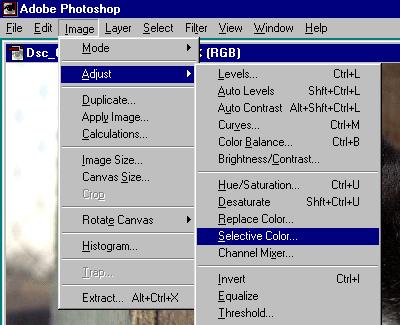
Choose "Adjust / Selective Color"


Stage One:

Screenshot shows location of the "Selective Color" adjustment.

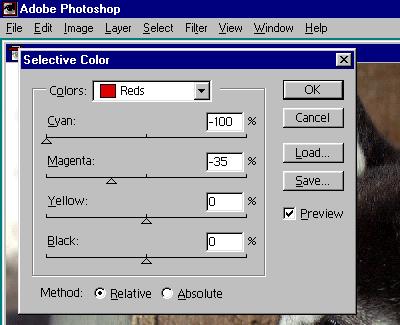
Make adjustments to Cyan and Magenta as shown


Under "Reds" (only), adjust the Cyan to minus 100% and the Magenta to minus 35%.

Note that the "Relative" method checked.

Click on "OK" when done.

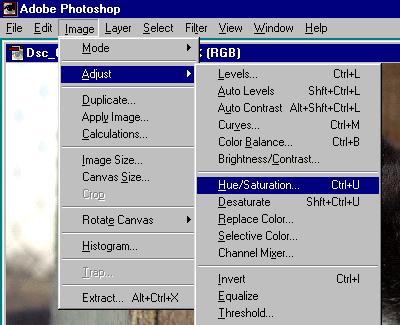
Then Choose "Adjust / Hue/Saturation"


Stage Two:

Screenshot shows location of the "Hue/Saturation" adjustment.


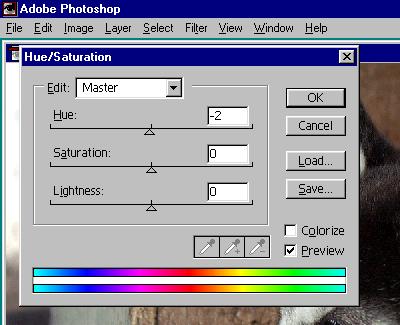
(Last Step) Adjust Hue as shown


Under "Master" (only), adjust the Hue to minus 2.

Click on "OK" when done.


That's it.

Nothing else required.


Before & after samples using the procedure -

Click for a 1200 x 787 pixel view

Before:

Magenta and cyan tones to skin. Flat, dull, & off-colored reds.

(Click picture for 1200 x 787 pixel view)

Click for a 1200 x 787 pixel view

After:

Reds pop back to reality. Skin tones, too.

Note that the bad tones are corrected, but the picture's other colors are unaffected.

(Click picture for 1200 x 787 pixel view)

Click for a 1200 x 787 pixel view

Before:

Sallow and cyan cast to the whole picture. Yukky skin tones. Greenish tint to the surfer's hair.

(Click picture for 1200 x 787 pixel view)

Click for a 1200 x 787 pixel view

After:

Bingo.

(Click picture for 1200 x 787 pixel view)


Return to Top of Page